Tutorial 3: Coupling pySimBlocks with SOFA
This tutorial builds on Tutorial 1 and Tutorial 2. The linear plant is replaced with a SOFA scene so the controller interacts with a physics-based simulation.
Goals
The objective is to:
Configure the environment needed to run SOFA from
pySimBlocksReplace the plant with a
SofaPlantblockCreate a SOFA controller that exchanges signals with the block diagram
Run the coupled model in both execution modes
By the end of this tutorial, you will be able to connect a pySimBlocks
control loop to a SOFA simulation.
Required Files
This tutorial uses a SOFA scene and mesh files that are provided for you. Download the archive below — it contains everything you need:
finger/Finger.py— the SOFA scenefinger/mesh/— mesh assets required by the scenefinger/FingerController.py— the SOFA controller (also shown in full below)project.yaml— the tutorial 2 project as a starting pointproject_solution.yaml— the completed reference to compare against
If you have cloned the repository, the files are already in
examples/tutorials/tutorial_3_sofa/.
Extract the archive so that finger/ and project.yaml sit in the same
folder.
System Description
We build the same closed-loop structure as in the previous tutorials:
A constant reference
A PI controller
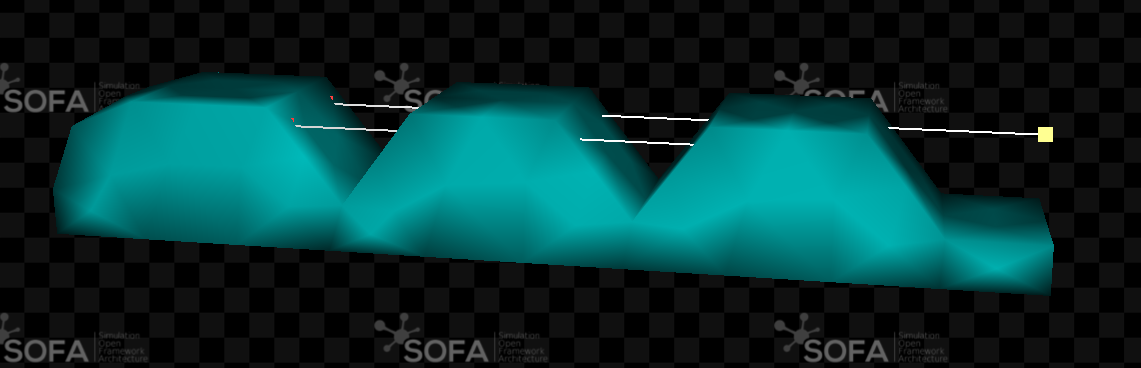
A SOFA simulation of a tendon-driven finger

The control input is the cable actuation, and the measured output is the vertical fingertip position.
Prerequisites
Before coupling pySimBlocks with SOFA, make sure:
SOFA is installed
Python can import
SofarunSofais available throughSOFA_ROOT
pySimBlocks has been tested with SOFA v24.06 and later.
Linux and macOS
export SOFA_ROOT=/path/to/your/sofa

# Binary release:
export PYTHONPATH=$SOFA_ROOT/plugins/SofaPython3/lib/python3/site-packages:$PYTHONPATH

# Built from source:
# export PYTHONPATH=$SOFA_ROOT/lib/python3/site-packages:$PYTHONPATH
Windows
$env:SOFA_ROOT = "C:\path\to\your\sofa"

# Binary release:
$env:PYTHONPATH = "$env:SOFA_ROOT\plugins\SofaPython3\lib\python3\site-packages;$env:PYTHONPATH"

# Built from source:
# $env:PYTHONPATH = "$env:SOFA_ROOT\lib\python3\site-packages;$env:PYTHONPATH"
Verify the Setup
Check that Python can import SOFA:
import Sofa
import SofaRuntime
Then verify that runSofa is available:
Linux and macOS:
$SOFA_ROOT/bin/runSofaWindows:
$env:SOFA_ROOT\bin\runSofa.exe
SOFA Controller Contract
To exchange data between the diagram and the SOFA scene, subclass
SofaPysimBlocksController from pySimBlocks.blocks.systems.sofa.
Your controller must define:
self.project_yaml— path to theproject.yamlfileself.inputs— dict of signals received from pySimBlocks (keys must matchinput_keyson the block)self.outputs— dict of signals sent back to pySimBlocks (keys must matchoutput_keyson the block)
It must implement:
set_inputs()— applyself.inputsvalues to the SOFA sceneget_outputs()— read SOFA state and write results intoself.outputs
Example Controller
The tutorial example uses the following controller:
from pathlib import Path

import numpy as np

from pySimBlocks.blocks.systems.sofa import SofaPysimBlocksController

BASE_DIR = Path(__file__).resolve().parent


class FingerController(SofaPysimBlocksController):

    def __init__(self, actuator, mo, tip_index=121, name="FingerController"):
        super().__init__(name=name)
        self.project_yaml = str((BASE_DIR / '../project.yaml').resolve())

        self.mo = mo
        self.actuator = actuator
        self.tip_index = tip_index
        self.verbose = False # Set to True to print debug information at each step

        # Inputs & outputs dictionaries
        self.inputs = { "cable": None }
        self.outputs = { "tip": None, "measure": None }


    def get_outputs(self):
        tip = self.mo.position[self.tip_index].copy()
        self.outputs["tip"] = np.asarray(tip).reshape(-1, 1)
        self.outputs["measure"] = np.asarray(tip[1]).reshape(-1, 1)

    def set_inputs(self):
        val = self.inputs["cable"]
        if val is None:
            raise ValueError("Input 'cable' is not set")
        self.actuator.value = [val.item()]
The scene must instantiate that controller and return it from createScene(...)
alongside the root node.
Configure the SofaPlant Block
In the GUI, replace the LinearStateSpace block from the previous tutorials
with a SofaPlant block from the Systems category.
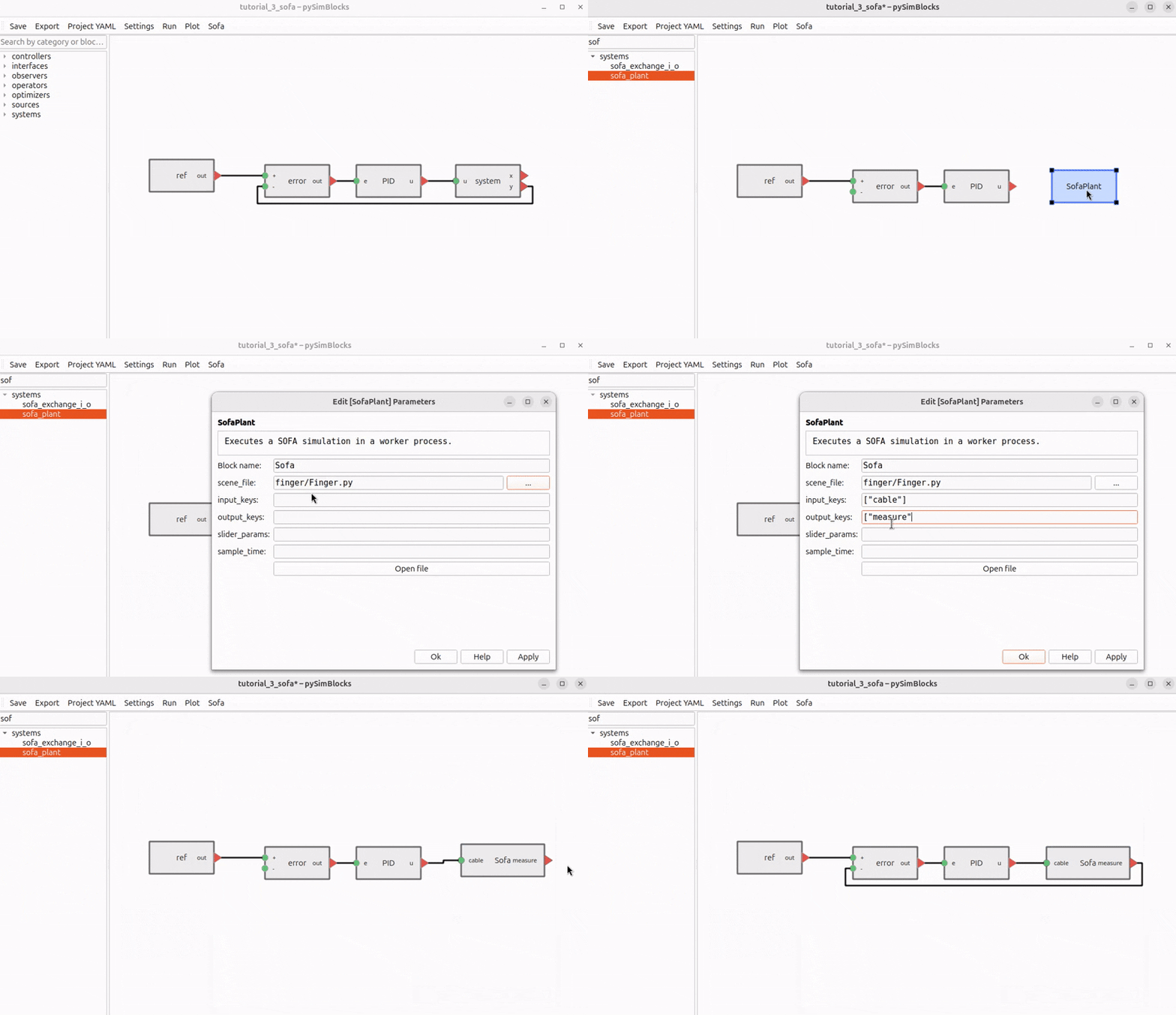
Set the block parameters as follows:
Parameter |
Value |
|---|---|
|
|
|
|
|
|
|
|
The key names must match the dictionaries declared in the SOFA controller.
Note:: Time step constraint
The SOFA scene dt (set in createScene via rootNode.dt) must be a positive integer divisor of the SofaPlant sample time. If no sample_time is set on the block, the global simulation dt is used. pySimBlocks enforces this at startup and raises an error if the constraint is not satisfied. Example: if rootNode.dt = 0.01 in your scene, valid block sample times are 0.01, 0.02, 0.05, etc.
Execution Modes
pySimBlocks as Master
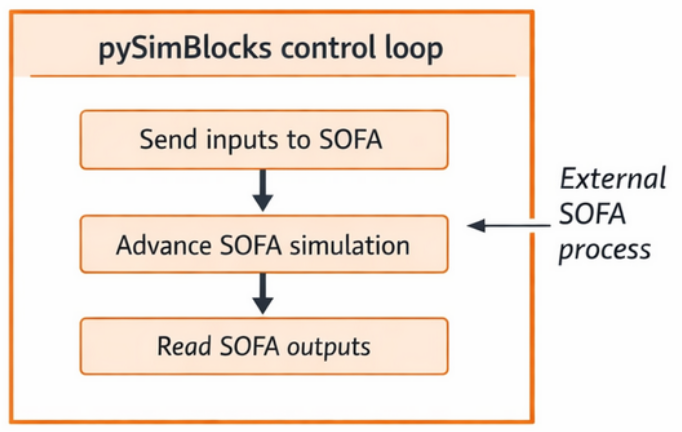
In this mode, pySimBlocks drives the clock. The SofaPlant block runs SOFA
headlessly and advances it by one step at each control iteration.
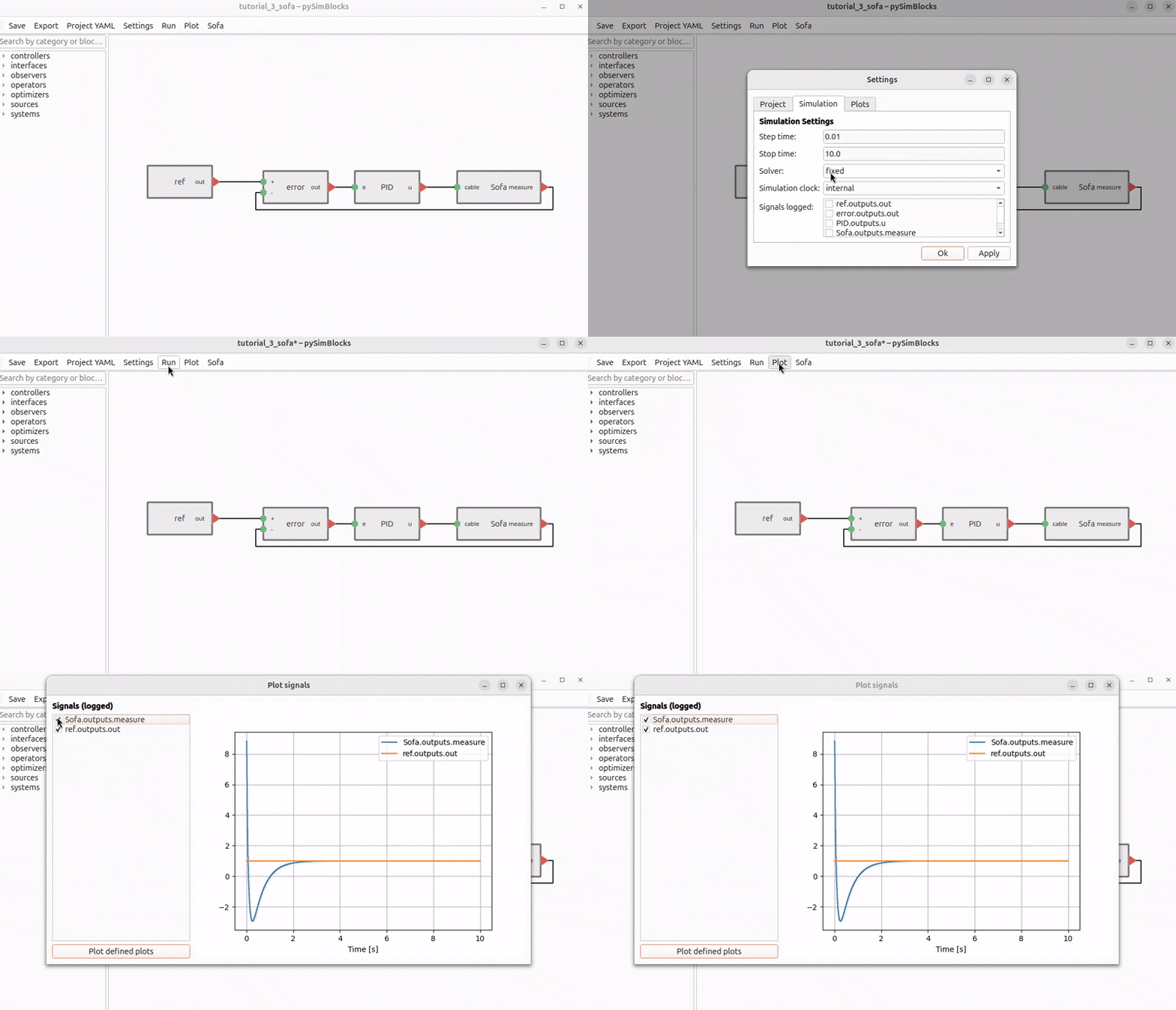
Run the model as you would in Tutorial 2, either from the GUI or from the exported Python runner.
SOFA as Master
In this mode, SOFA drives the clock and the controller triggers the
pySimBlocks diagram during the SOFA animation loop.
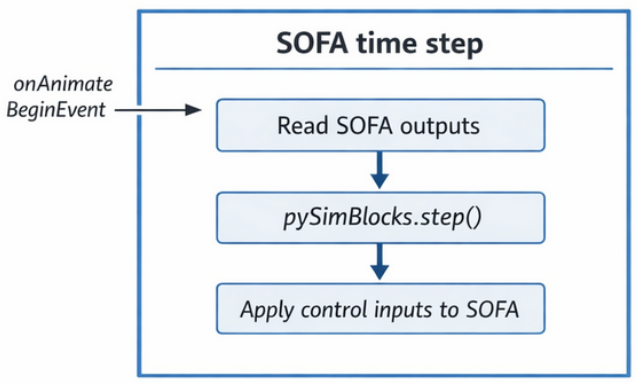
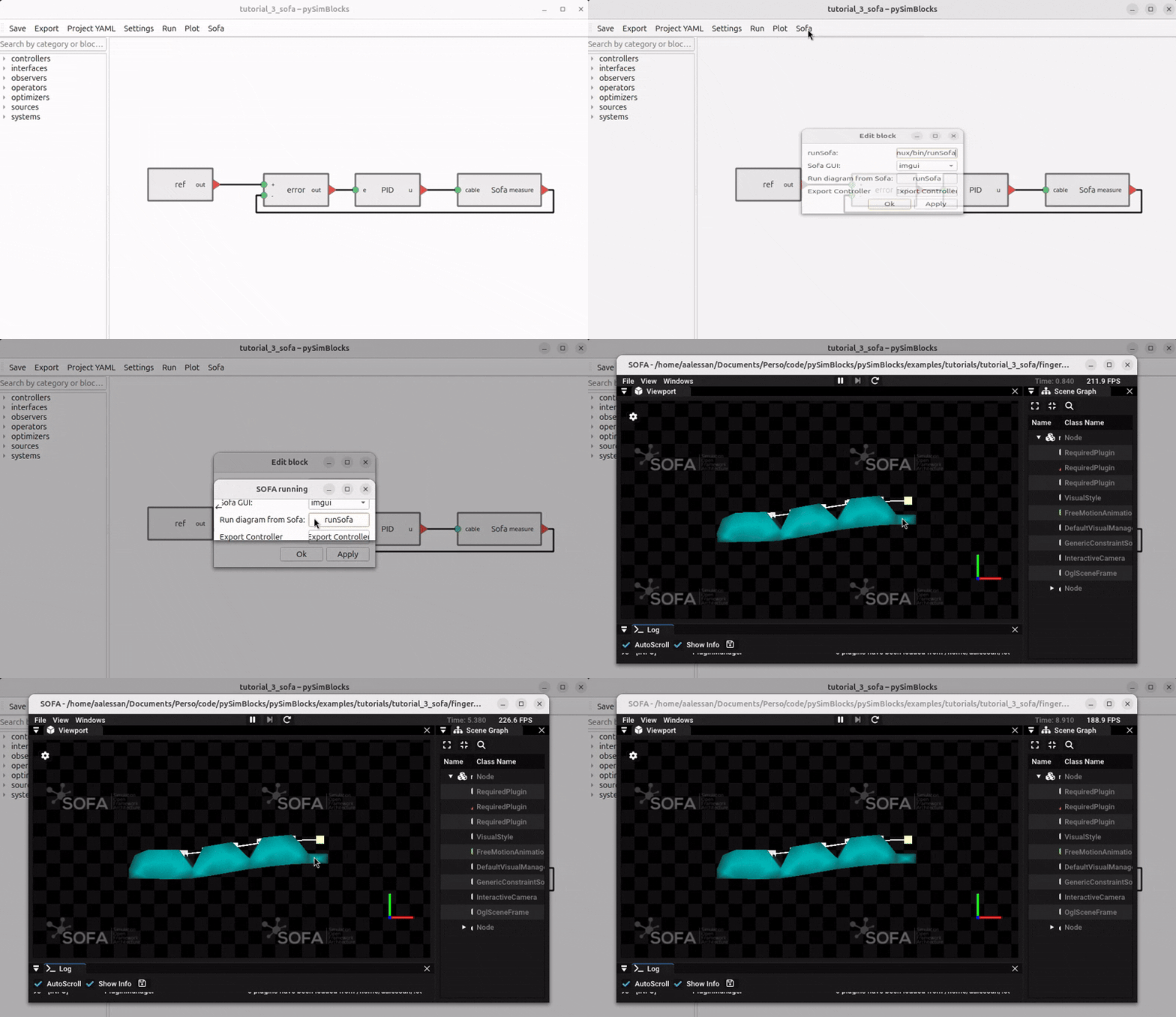
Open the SOFA panel from the toolbar and click runSofa to launch the scene
with the SOFA GUI.
Live Sliders and Plots
If your SOFA installation includes the Compliance Robotics GUI, the parameters
declared in slider_params become live sliders in SOFA, and the plots defined
in the pySimBlocks project are displayed live in the same window.
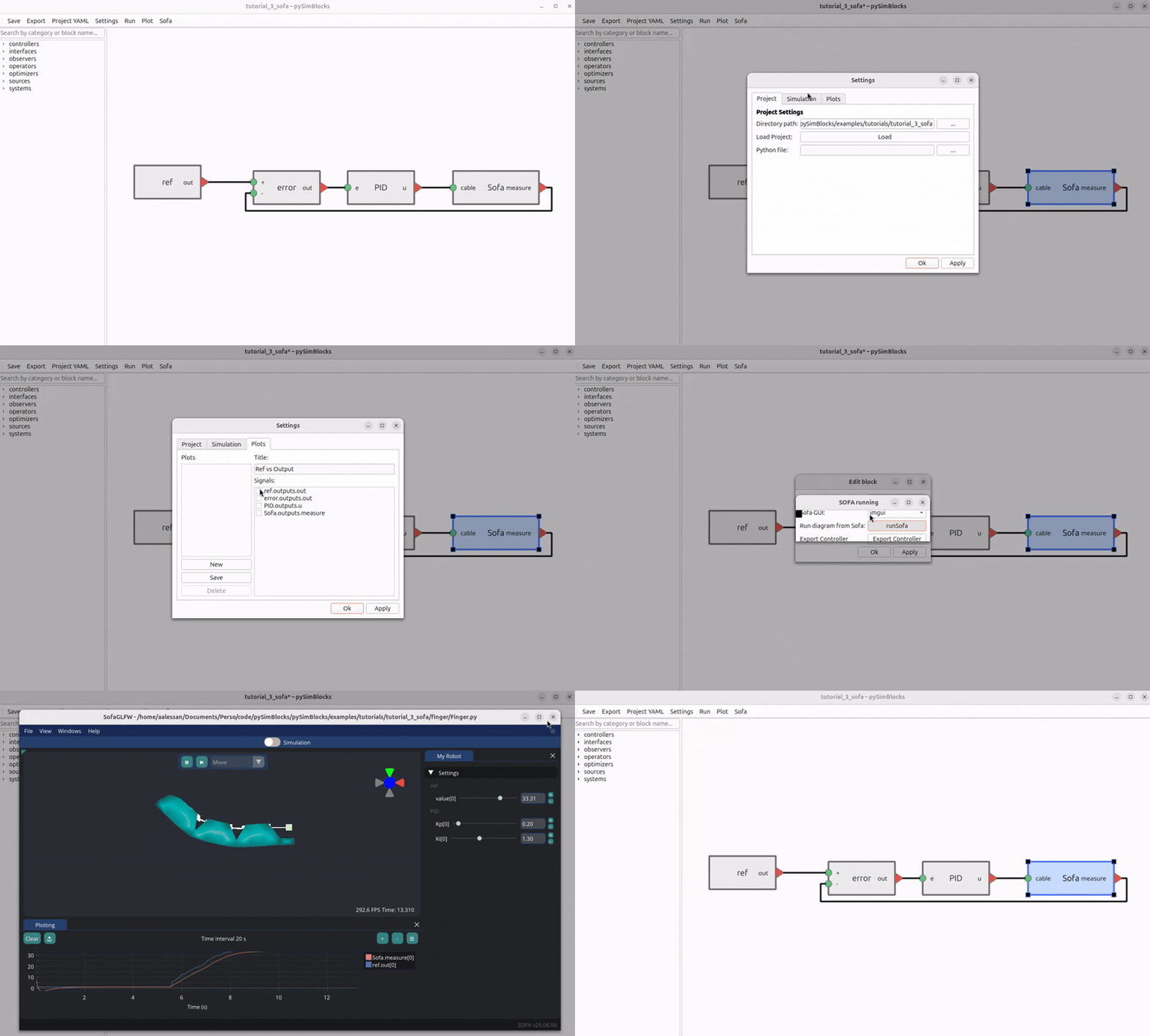
This makes it possible to tune ref.value, PID.Kp, and PID.Ki while the
simulation is running.
Try It Yourself
Experiment with the coupled model to better understand the workflow:
Modify
KpandKiand compare the tracking behaviorChange the reference and observe the fingertip response
Run the same project with both execution modes
If available, use the live SOFA sliders and plots for real-time tuning